 Feature guides
Remove background from any photo
Remove background from photo with just one tap. Our free tool removes backgrounds from product photos, portraits, and images instantly. Get clean white or transparent backgrounds.
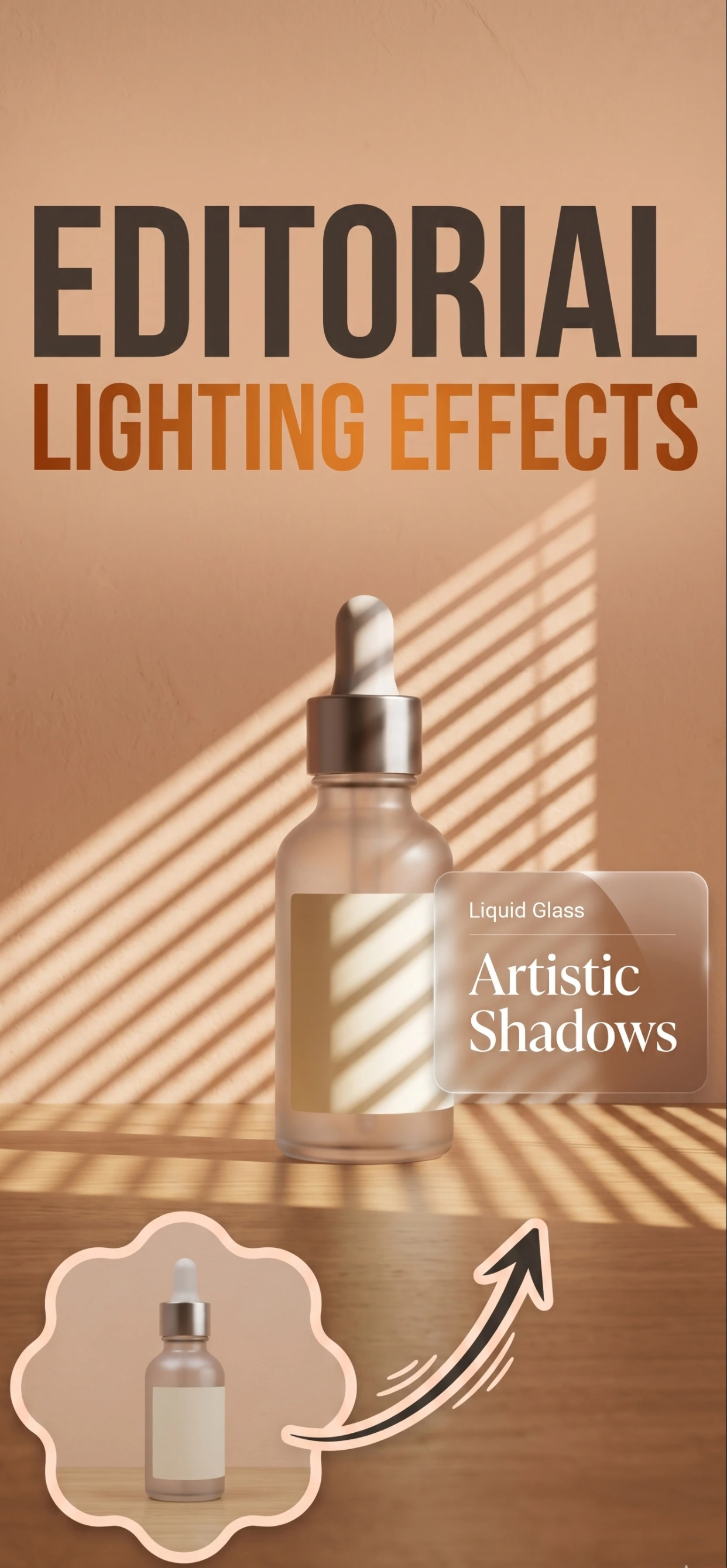
How to Remove Background from Photo
- 1. Upload Your Photo: Take a photo with your iPhone or upload an existing image from your gallery.
- 2. Automatic Removal: Our tool automatically removes the background from your photo in seconds.
- 3. Choose Background: Select white background for ecommerce or transparent for creative projects.
- 4. Download: Download your image with background removed. Ready for any use.
Remove Background from Any Photo Type
- Product Photos: Remove background from product photos for Amazon, Shopify, Etsy, eBay, and other marketplaces.
- Portrait Photos: Remove background from portraits for professional headshots, LinkedIn profiles, and resumes.
- Ecommerce Images: Create clean product images that meet all marketplace requirements.
- Creative Graphics: Remove background from images for logos, stickers, and digital art projects.
How it works
Three steps from a phone photo to a finished image
Scan or upload
Take a photo in the app, or pick one you already shot on your iPhone.
Let the AI work
The app removes the background, relights the product and builds the scene.
Export and list
Save a marketplace-ready image at the size your listing needs.
FAQ
Frequently asked questions
How do I remove a background from a product photo?
Open the photo in Zenith AI – Product Photo and tap background removal. The app detects the product, cuts it out and returns a clean transparent or white background.
Which photos remove cleanly?
Sharp, evenly lit photos with the product clearly separated from the backdrop. Busy backgrounds still work, but a simple backdrop gives the cleanest edge.
Can I remove backgrounds from multiple photos at once?
Yes — process a batch in one pass. Keep the same lighting and framing across the batch and the results stay consistent.
Do I need to keep the original photo?
Always keep the original. The app works from a copy, but your master file is what you fall back on for re-edits and future re-shoots.
Try it on your next photo
Free to download on the App Store. iPhone and iPad only.